Shopping Cart Blogger Template

We are proud to release Shopping Cart, the first ever free e-commerce/ online store template with “Add to Cart” and PayPal Checkout function for Blogger. Many had a view that Blogger cannot be transformed into an online store because people thought it is just a platform for beginners and does not have features like a CMS. But, we made it possible in this template.

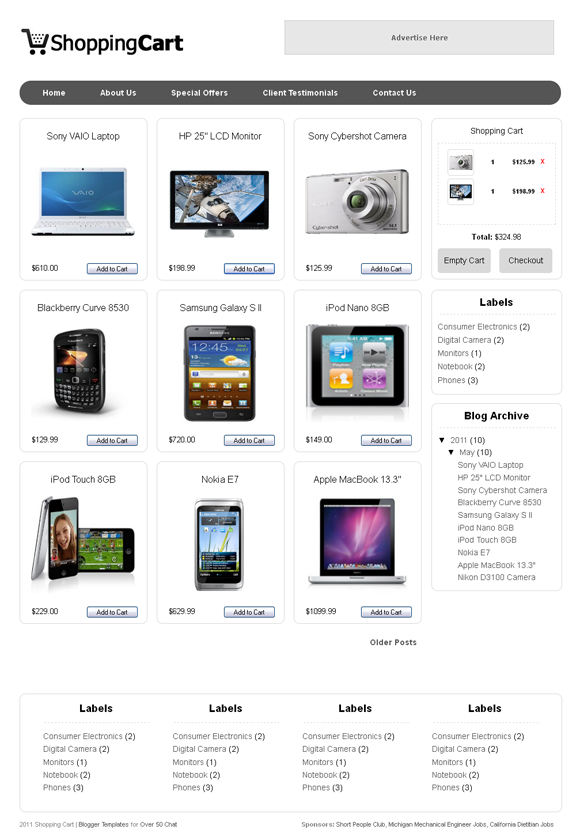
Thanks to the creators of Simple Cart script which powers entire cart functions in this template. Here is a screenshot of the blog which we set for demo purpose only.
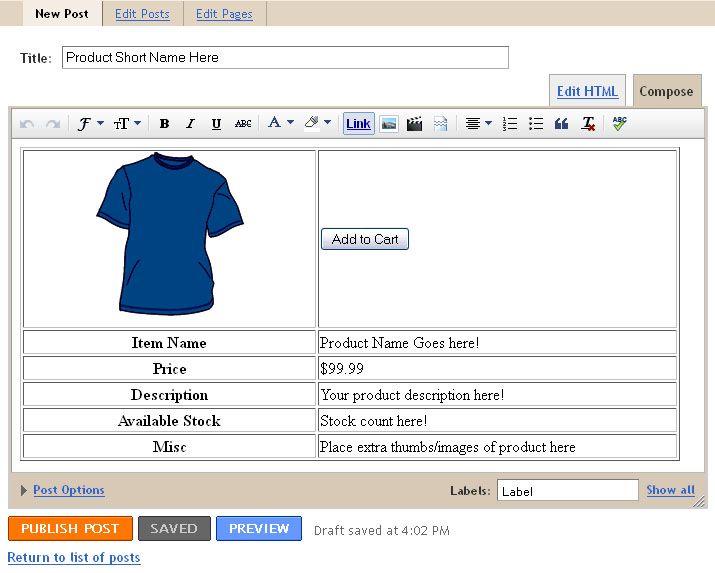
Other blogging platforms like WordPress has “Custom Fields” option which lets us to add extra description such as price and thumbnails without having to add the HTML codes in post editor. But, Blogger doesn’t have that feature. So, we at Bloggermint.com tried our best to make the item posting as easy as possible by using tables method. Here is how the table looks in post editor.
Template Usage Instructions

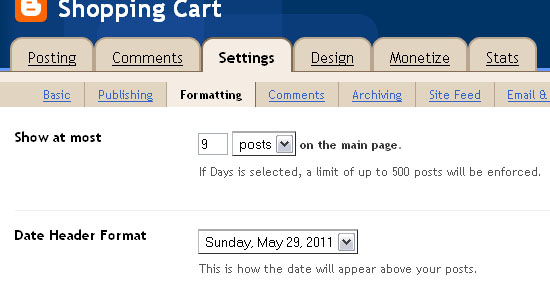
Using Blogger’s “Post Template” feature, we are able to pre-format the post editor with text or code that will appear each time we create a new post. So, we will make use of that feature in this template. First, download Shopping Cart Blogger template and upload it to your blog. Now, go to Settings > Formatting. Set the desired number of posts to be shown in the blog.
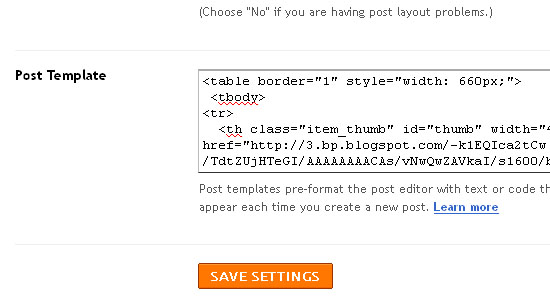
Then, scroll down the page until you see “Post Template” option. Paste the following code into the text area. And click “Save“.

<table border="1" style="width: 660px;">
<tbody>
<tr>
  <th class="item_thumb" id="thumb" width="45%"><a href="http://3.bp.blogspot.com/-k1EQIca2tCw/TdtZUjHTeGI/AAAAAAAACAs/vNwQwZAVkaI/s1600/blue.gif" onblur="try {parent.deselectBloggerImageGracefully();} catch(e) {}"><img alt="" border="0" id="BLOGGER_PHOTO_ID_5610175970378217570" src="http://3.bp.blogspot.com/-k1EQIca2tCw/TdtZUjHTeGI/AAAAAAAACAs/vNwQwZAVkaI/s400/blue.gif" style="cursor: hand; cursor: pointer; display: block; height: 164px; margin: 0px auto 10px; text-align: center; width: 148px;" /></a></th>
  <td><input class="item_add" type="button" value="Add to Cart" /></td>
</tr>
<tr>
  <th><b>Item Name</b></th>
  <td class="item_name">Product Name Goes here!</td>
</tr>
<tr>
  <th><b>Price</b></th>
  <td class="item_price">$99.99</td>
 </tr>
<tr>
  <th><b>Description</b></th>
  <td class="item_Description">Your product description here!</td>
 </tr>
<tr>
  <th><b>Available Stock</b></th>
  <td>Stock count here!</td>
</tr>
<tr>
  <th><b>Misc</b></th>
  <td>Place extra thumbs/images of product here</td>
</tr>
</tbody>
</table>

Here is the screenshot of post template which has been added with the code.
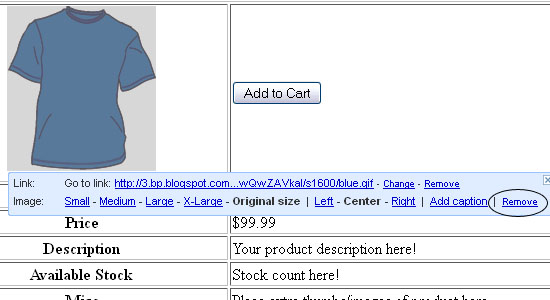
Now go to Posting | New Post and you’ll see the table there in your post editor. You can remove the default image that we have added in the code by clicking on it and select “Remove“. Then, upload your item image inside that table cell. We suggest you to use images of medium sizes.
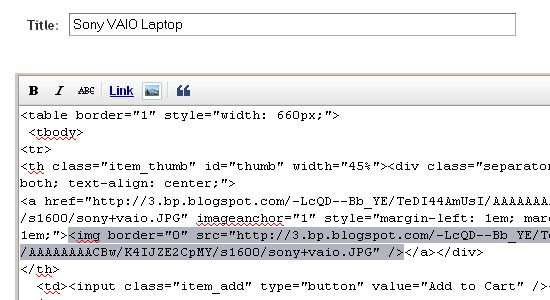
Fill in other options such as Item Name, Price and Description by replacing the default texts. They will be used as values by the SimpleCart script during the PayPal Checkout. And please remember that your Item Name must be unique. Now, click on the HTML Mode in post editor and remove the unnecessary <div>.... </div> in the code for item image. We need only the <img ... /> which has been highlighted in the image below.
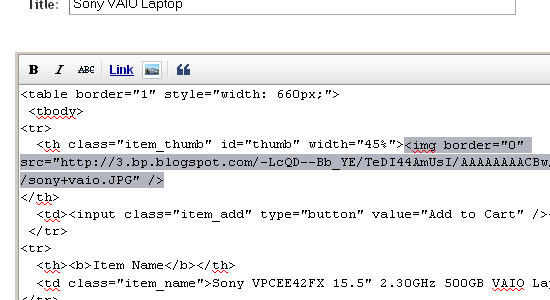
So, this is how it will look once we remove the <div>.... and <a href.... which wraps <img ... code.
You can change it back to “Compose” mode, add/edit any information about the product and hit the “Publish” button. That’s all.

PayPal Email Setup Instructions

Go to Design > HTML. Search for simpleCart.email using CTRL + F. You will find this piece of code.

<script type='text/javascript'>
simpleCart.email = &quot;bloggermint@gmail.com&quot;;
simpleCart.checkoutTo = PayPal;

simpleCart.cartHeaders = [&quot;thumb_image&quot; , &quot;Quantity_input&quot; ,   &quot;Total&quot;, &quot;remove&quot; ];

</script>

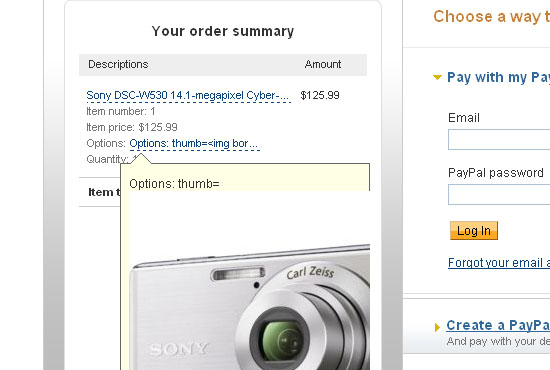
Replace the default PayPal email that we set (bloggermint@gmail.com) to yours. And Save the template. You’re done! Here is a sample screenshot of PayPal pop up window during checkout.
We have planned for a paid PRO version of this Shopping Cart with more advanced features and professional look. Please keep the footer credit links intact. If you want to remove the link you have to pay a little fee. And, if you want to get the template customized , contact us. Also check our Blogger Template site Blogger Templates Hub Blog for latest blogger templates.

Update 08/06/2011 :

For those who don’t have PayPal/credit card, you might want to use email contact form. You can replace “Add to Cart” button with a email contact/feedback form link by following the steps below. Heartfelt thanks to one of our blog reader, Vivija(Ble) from Skopje, Macedonia, who spent her time to find this method.

First, go to Kontacr.com and register for a new account. Once you logged into Kontacr, scroll down the page until you see the “Ajax Embed Widget” or “Buttons Code” and get your Kontacr ID which will look like this :- id=39662;. Copy it and keep it for the usage in the coming steps.

Now, go to Design > Edit HTML . Add the code shown below just before the closing </head> tag.

<script type="text/javascript" src="http://kontactr.com/kpu/kontactr.js"></script>

Then, search for the piece of code shown below using CTRL + F.

input.item_add{
    bottom: 9px;
    font-size: 11px;
    position: absolute;
    right: 15px;
    width: 90px;
}

There are two input.item_add{ codes in this template. But, you can differentiate them by looking at the CSS declarations inside { .... }. Search for the input.item_add{ code which comes earlier in CSS part. Then, replace it with this code.

span.item_add{
    bottom: 9px;
    font-size: 11px;
    position: absolute;
    right: 15px;
    width: 90px;
}

So now, search for the second input.item_add { code at the bottom of the CSS Part.

input.item_add {
    font-size: 17px;
    height: 40px;
    margin: 5px 0 0 140px;
    position: relative;
    width: 120px;
}

And replace it with

span.item_add {
    font-size: 17px;
    height: 40px;
    margin: 5px 0 0 140px;
    position: relative;
    width: 120px;
}

And now click “Save Template”. Once saved, go to Settings > Formatting and search for the “Post Template” option which is located at the bottom of that page.

Add the following code into the text area there and click “Save Settings“. But before that, remember to change the id=39662; with your ID in Kontacr which you get earlier.

<table border="1" style="width: 660px;">
 <tbody>
<tr>
  <th class="item_thumb" id="thumb" width="45%"><a href="http://3.bp.blogspot.com/-k1EQIca2tCw/TdtZUjHTeGI/AAAAAAAACAs/vNwQwZAVkaI/s1600/blue.gif" onblur="try {parent.deselectBloggerImageGracefully();} catch(e) {}"><img alt="" border="0" id="BLOGGER_PHOTO_ID_5610175970378217570" src="http://3.bp.blogspot.com/-k1EQIca2tCw/TdtZUjHTeGI/AAAAAAAACAs/vNwQwZAVkaI/s400/blue.gif" style="cursor: hand; cursor: pointer; display: block; height: 164px; margin: 0px auto 10px; text-align: center; width: 148px;" /></a></th>
  <td><span class="item_add"><script type="text/javascript"> id=39662; t=1; ctxt="Order Now"; </script>
<script type="text/javascript" src="http://kontactr.com/kpu/kontactr.js"></script></span></td>
 </tr>
<tr>
  <th><b>Item Name</b></th>
  <td class="item_name">Product Name Goes here!</td>
</tr>
<tr>
  <th><b>Price</b></th>
  <td class="item_price">$99.99</td>
 </tr>
<tr>
  <th><b>Description</b></th>
  <td class="item_Description">Your product description here!</td>
 </tr>
<tr>
  <th><b>Available Stock</b></th>
  <td>Stock count here!</td>
 </tr>
<tr>
  <th><b>Misc</b></th>
  <td>Place extra thumbs/images of product here</td>
 </tr>
</tbody></table>

And you’re done. I have updated the demo blog with email feedback links in several items. Thanks again to Vivija.

Update 25/07/2011 :

Due to some suspicious changes in our Google code, where we hosted our script, the Cart Javascript was not working. We have reuploaded the js file. We are are sorry for the inconvenience caused.

Search for the following code in your template HTML editor.

<script src='http://introbloggerscripts.googlecode.com/files/cart.js' type='text/javascript'/>

And replace it with the newer source URL.

<script src='http://shopppingcart.googlecode.com/files/simplecart.js' type='text/javascript'/>

Update: I am trying to get the demo URL back to the form. For some unknown reason the Demo blog wasn’t working. So I have contacted Blogger, hope they fix it soon.

Update 2: We have fixed the demo blog issue. Thanks for your patience.

If you want some new features added to the template, hire me for the customization. Hourly rates starting from $25/hr.

May 29, 2011. This entry was posted in Blogger and tagged , . Bookmark the permalink.

We Recommend HostGator Hosting

Bloggermint strongly recommends Hostgator Hosting for all of your web hosting needs. Sign up today for WordPress Hosting at just $4.95/month.

Use coupon code "bloggermint" to get 25% discount on any hosting packages. Get an account with Hostgator now!

428 Responses so far!

  1. Hi !

    When I paste the code in the template I get:
    We’re sorry, but we were unable to complete your request.

    When reporting this error to Blogger Support or on the Blogger Help Group, please:

    Describe what you were doing when you got this error.
    Provide the following error code.

    bX-wp0sp2

    This information will help us to track down your specific problem and fix it! We apologize for the inconvenience.

    Any suggestions pls?

    Thx Diego

    • go back to old blogger interface and paste the code.

    • Hey, I had the same problem. I solved it by uploading the template rather than copy-pasting it. To upload the template go to Template and look at the top right of the screen, find a Backup/Restore button. Click it. There you will see how to upload this wonderful template for which I am thankful very much :)

  2. the cart allow 3 item only. Is there a way to change it?

  3. This template didin’t work well on my blog..
    I don’t know why..
    :(

  4. Thanks, it’s a great template. One small glitch tho, the shopping cart only allows 3 items when you browse through older item pages.
    So if I Added 7 items from Page one, and then clicked on older posts, only 3 items remain in the cart…

    Keep it up,.
    TA

  5. I want to change the background image and colors. When I put my html code in for the background body image, nothing happened. Is there something in your code that prevents me from customizing this to my own style? Please tell me how I can customize the background colors and image to reflect my personal style.

    Thank you,
    Sunny

  6. Nevermind. I got it to work. Thanks for this great template! :o )

  7. Hi. This is a great template. But is it possible to put affiliate link on the checkout instead of Paypal? Thanks.

  8. why i can not set my paypal ? please help me :)

  9. Hi,
    Thanks for the great template and the clear explanation that is easy to follow.
    Need your help a little here, tell me how to change the checkout straight to showing my contact form instead?

    Thanks in advance

  10. How to add liberty reserve checkout.
    Thanks

  11. My pictures distort… even when I make them small… suggestions?

  12. Thank you for the great template. I only got one question. Is there any way that I can change the gallery display image in larger size and in portrait orientation? Basically, is it possible to adjust the display size? Cause I learn that this template is better using square size images. TIA

  13. Hi is it possible to add more pages other than just ‘Home’ , eg. just like your demo? Thanks a lot!

  14. Hi,
    Great idea !
    One question : you say that we need to download the shopping cart file, then “upload it to your blogger”. But how to upload something in blogger ?
    Thanks

  15. Hi again ;-)
    To be more accurate, I already have a blogger template. So if I download a new template, all my blog will be deleted. How to have my template + the shopping cart template in my blog ?
    Thanks so much

  16. looking like Wp theme…. lets i will try….

  17. is there anyway i can change the checkout from paypal to another such as alertpay or even moneygrame?

  18. Hello,

    Thanks for this GREAT template !!

    But, I need some help lol

    Everything seems to work up until I get to PayPal Email Setup Instructions. I cant seem to find the phrase SimpleCart in my HTML, It says phrase not found.

    I do have a paypal account and prefer to use paypal instead of an email contact form.

    PLEASE HELP ME :)

  19. Hi There,

    I have just downloaded your shopping cart code and input it into my Blogger page, but I am getting an error “Your HTML cannot be accepted: Tag is broken: ![CDATA[ "

    If I close the Tag by putting a ]]> after the <![CDATA[ I get a new error message
    "Your HTML cannot be accepted: Tag is broken: DATA" Since there word DATA is used a hundred times in the template I am not sure where the error really is. Any assistance on fixing this would be greatly appreciated cause I can't wait to start using this setup on my blog. :)

    Thanks so much for your efforts in getting this up and running and sharing it with us all. I played around with the demo and loved it.

    • Hi just a follow up in case anyone was having the same issues I was. I found out why I couldn’t use your shopping cart. I was using the Dynamic Views Blogger template and html/java script gadgets are not compatible.

  20. how to change the img thumb?

  21. Great template, I was wondering if there was a way to customize as far as adding a button that gave the customer the ability to input. We sell ebooks and need to know what format of ebook they want ie: epub, mobi, or PDF and need that to show in the order form?

  22. Is it possible to add a shopping cart just to a blogger page and not to the blogger home?

  23. Text in English: I’m from Brazil, I would like to integrate with the payment system PagSeguro is possible?

    Texto em Português: Sou do Brasil, gostaria de integrar com o sistema de pagamento Pagseguro é possivel ?

  24. Hi there! What an awesome template you have here! I never imagined I’d find something like it when I stumbled on it!

    So I have a question, and honestly I googled everything I could think of to try and find my answer before I bothered you with my silly questions :P

    Is it at all possible to work it somehow with downloadable products? So that after paying with paypal, the customer is redirected to another place to download the products they purchased? I figure it’s a long shot, but it never hurts to ask!

    Again, thank you!

    • I have same question…….
      ( I mean if someone bought our product and downloading our product from our site so they get only one chance to download and also that tool should know that people download link successfully or not, if not, so it should continue from last, where its broken. )

      I hope you can understand what i am trying to say you.

      Thank you very much for your lovely template, WORKING CORRECT as you described.

      ***** Stars for you.

  25. Hi!

    Why the “item_name” of the posts DONT appear, causing that i see part of the table form?

    I do it all but nothing work. It’s a bug like the MAX 3 items that can achieve the cart?

    Thanks for your attention

  26. Olá, o seu template shopping cart não suporta pagamento em real, do Brasil, através do pagseguro. Poderia desenvolver um plugin que permitisse isso? Pois aqui utilizamos muito o blogger, porém não dá suporte para recebimento pelo pagseguro e google checkout. Obrigada!

  27. How to change the currency to MYR?

  28. Thanks for this template. Why every time I add or edit my pages then click on ‘save arrangement’, my pages links on the top bar are gone? My pages links also unintentionally added with certain numbers i.e. about-us_2?

  29. When I go to checkout on blogger.com using the shopping cart template, under “options” I get the follwoing code with link:

    Options: thumb=<a href="http://4.bp.blogspot.com/-r5R3SUzRYVY/UIOEyw9WaII/AAAAAAAAALA/LyEPsg3uoZY/s1600/Susse1.JPG&quot; imageanchor="1" style="margin

    How can I get rid of that?

  30. hi i tried to set up my paypal account accordingly as u told.but it keeps saying on checkout error …cart is empty.even there are products for checkout

  31. Hye. Blogger.com have new dashboard. so how to install shopping cart in my blog. I’m a beginner for ecommerce blogspot.

  32. Hi, am trying out this template but when I click “Checkout” I get an error that says my cart is empty. I see others are posting that same question. Help?

  33. Hi.
    Great template, and so far so good!

    Many thanks

  34. Hi

    once checkout, the calculated currency is USD. how do i change this to my country currency, MYR?

  35. Is there a way to have a confirmation message after the user click the “send” button using kontactr’s form ?

    Eg,

    Thank you for your orders. You will be contacted within the next…. Please wait for confirmation email.

  36. Edit the HTML file in blogger

    simpleCart.checkoutTo = PayPal;
    simpleCart.currency = USD; —-> change this to your currenc
    >>> I did try this but the calculation remains in USD. Help!

    • Hello, Ros.

      Go to the very same place you went and put the currency you want between ‘single quotes’, without spaces at all.

      Ex.: simpleCart.currency=’USD’;

      At least it worked in the checkout section. I coudn’ t change the sign “$” to my currency “R$” when the items appear added to the cart. If someone manages to do it, please let us know here.

      I hope it helped a little bit. =)

      Cheers.

  37. Also, is there a way to change the “order now” text into a button type javascript ? tried googling but there isnt a specific info that i could find. :/
    Thanks alot!

  38. i got several problem and i hope someone can help me

    - always got empty cart when i click checkout
    -only 4 items on page
    -how to change currency to MYR?
    thanks.

  39. i had a custom theme this template for my shop styles.
    just for sure,here is demo live template with a fake posts :
    http://magnolizashoppeonline.blogspot.com/

    thank you so much for this great template.

  40. duong tuan vu

    Template does not work when I make Update 08/06/2011.
    please help me!

  41. Thank you for the great template. So far it works like a charm!

  42. Hi, I’ve just created my on-line store, but recently there are problems with shopping cart… After I’ve added some items into the cart, I click “Checkout” (Comprar in spanish), and the program show me an error saying my shopping cart is empty.

    The other day, I tried to add 2 items into my cart, but when I clicked on “Checkout”, there was only 1 item in the cart.

    Help me if you can, please! I don’t want to change this template for my shop.

    Ulyana

  43. I have started using your template and it is great. However, when I tested the paypal checkout it errors saying my cart is empty even though there is one item in the cart. Not sure why it is doing this, but if you could send me a suggestion, I surely appreciate it. Thank you.

  44. Actually it just started working. So, never mind and thanks again.

  45. Paypal checkout does not work

  46. hello!, yeah, i found this template great!

    but can i add more that 1 photos in the images of product..???

    • uhm also, to change the USD to PHP.. or the $ sign??
      i tried to find it in the template css code, but can’t find it.. :(

Leave a Reply

Your email address will not be published. Required fields are marked *

You may use these HTML tags and attributes: <a href="" title=""> <abbr title=""> <acronym title=""> <b> <blockquote cite=""> <cite> <code> <del datetime=""> <em> <i> <q cite=""> <strike> <strong>